MesoLive Agent Setup - GUI
The MesoLive Agent is a companion app that runs on your machine and connects MesoLive to your brokerage account(s) and market data. On Windows and macOS, the Agent is typically installed as a GUI app from the OS app store.
Video tutorial
Install the Agent
- Windows:
install from the Microsoft Store - macOS:
install from the App Store
Microsoft Store is currently not available in Windows Server editions.
To install the Agent on Windows Server, please refer to the CLI setup instructions and use the CLI version of the Agent.
Create an Agent Key
- Open the MesoLive Agents page
- Click New Agent Key
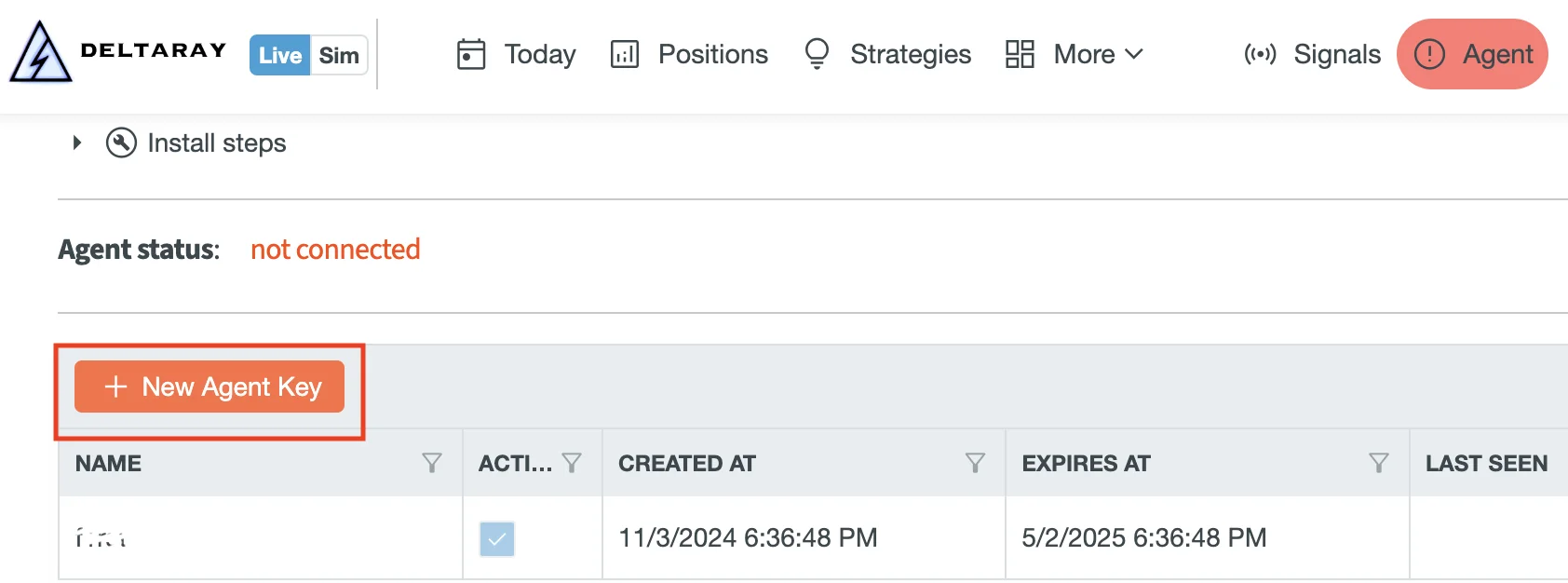
- Copy and save the key value (it is shown once) in a safe place.
Treat Agent Keys like passwords. If a key expires or is revoked, generate a new one and update the Agent configuration.
- Start MesoLive Agent and paste the key into the configuration (see below).
First run
License acceptance
On first launch, the Agent shows a License Agreement page. You must accept it to continue.
Agent connectivity setup
Open Configuration in the Agent to configure the Portal connection by providing your Agent Key and your enabled integrations.
IBKR - Trader Workstation
See Interactive Brokers setup for details on TWS configuration and API access.
Enable IBKR - Trader Workstation and set:
- TWS Host:
localhostif TWS runs on the same machine - TWS Port: set in TWS API settings (commonly
7496live,7497paper) - Client ID: must be unique per TWS API client
TastyTrade (API)
See TastyTrade setup on how to obtain the required credentials.
Enable TastyTrade - API and set:
- Client Secret
- Refresh Token
Complete setup and connect
After you entered the required connectivity information click Save and go back to the main screen.
The Agent will attempt to connect to the Portal and your enabled integrations.
Status indicators
After successful connection, the Agent main screen shows connectivity status and last update timestamps for each integration.
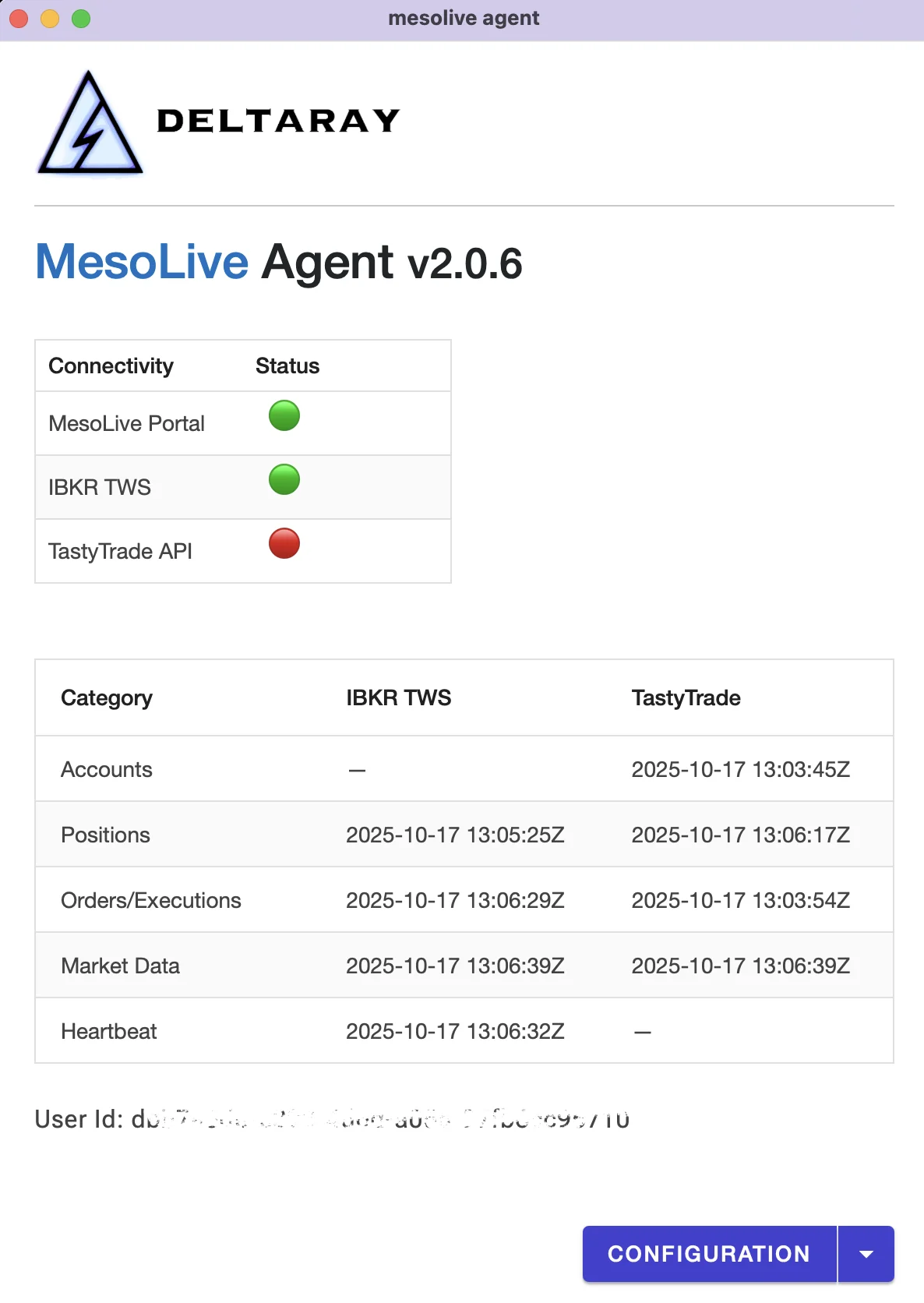
The Agent main screen shows:
- Connectivity (green/red):
- MesoLive Portal: whether the Agent can authenticate and maintain a live connection to the Portal backend
- IBKR TWS: whether the Agent is connected to the TWS API
- TastyTrade API: whether the Agent is connected to TastyTrade
- Last update timestamps:
- Accounts / Positions / Orders/Executions / Market Data indicate the last successful update per integration
- Heartbeat (IBKR) indicates the Agent is still receiving keep-alive information from TWS
If timestamps stop updating, treat it as an outage and troubleshoot before trading.
Operational notes
Best practices for stable operation
- Keep the machine awake with MesoLive Agent running. Sleep/hibernate pauses the Agent and will cause stale data in the Portal.
- Keep TWS logged in (IBKR). If TWS disconnects or logs out, the Agent cannot trade or stream data.
- If you run multiple trading tools against the same TWS, ensure the Client ID is unique per tool.
Updates and minimum supported versions
MesoLive may enforce a minimum Agent version to keep the Portal ↔ Agent protocol compatible. If your Agent is too old, the backend can reject the connection and the Agent will appear offline in the Portal.
What to do:
- Windows/macOS: update the Agent from the OS app store (or reinstall it).
- If the Agent shows Portal is red but your key is valid, check for updates before deeper troubleshooting.
See also: Troubleshooting → Agent.
Logs for troubleshooting
The GUI writes logs to a MesoLiveAgentLogs folder under the app’s OS cache directory.
Practical way to find it:
- Search your disk for
MesoLiveAgentLogs - Attach the newest files when opening a support ticket
See also: Troubleshooting → Agent → Collecting logs.
Troubleshooting
- Portal is red: verify the Agent Key (paste errors are common), ensure it’s not expired, then restart the Agent.
- IBKR is red: confirm TWS is running, API access is enabled, and the port + Client ID match the Agent config.
- TastyTrade is red: re-check Client Secret / Refresh Token and regenerate them if needed.
See also: Troubleshooting → Agent.