Create and Adjust Positions
Video tutorial
This tutorial covers the trade lifecycle: build → submit/execute → monitor → adjust/exit.
Prerequisites
- MesoLive Agent is running and connected (market data + broker): see Install
- A strategy is deployed from MesoSim: Deploy Strategy
Create a position
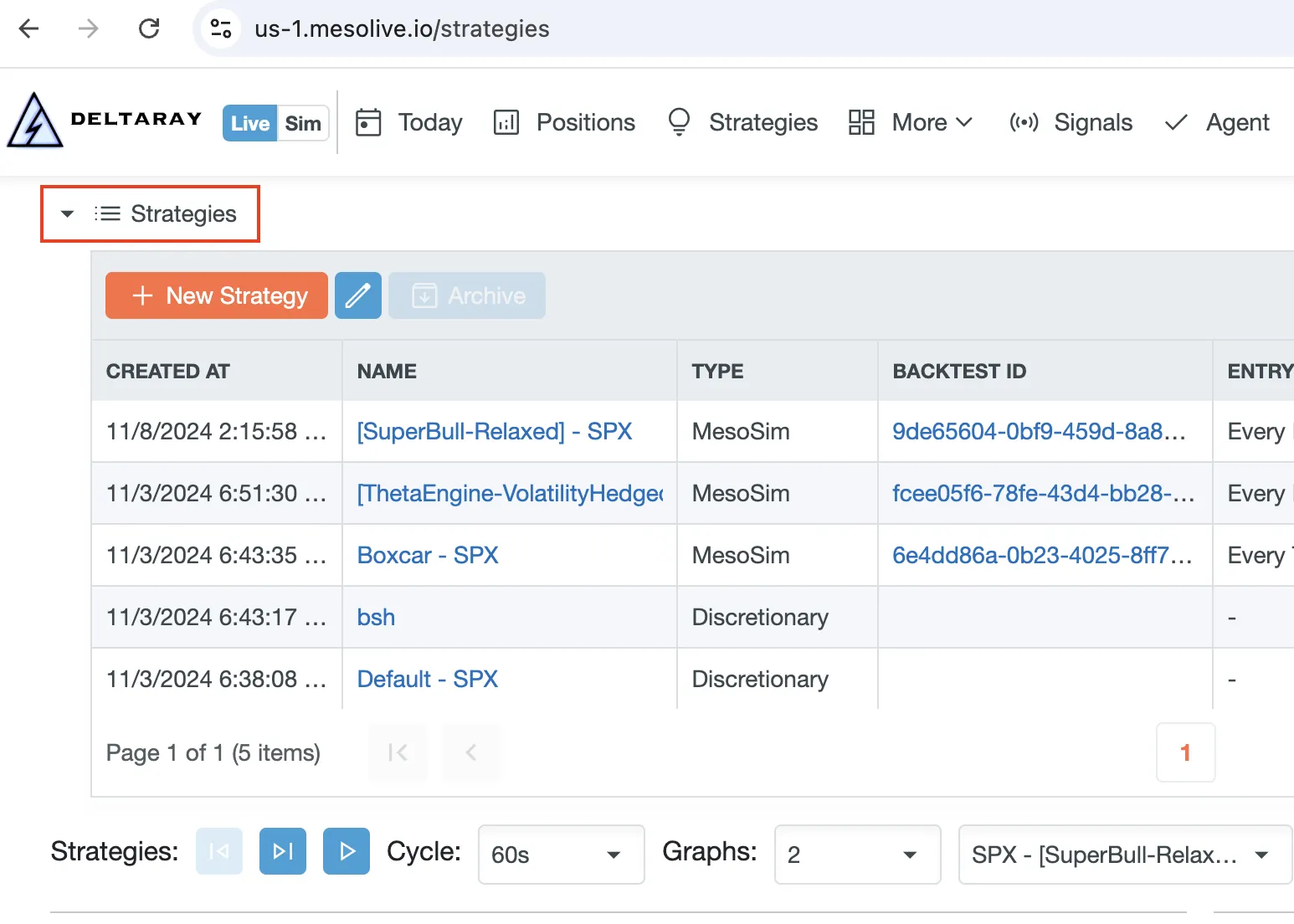
Once a strategy is deployed from MesoSim to MesoLive, it appears on the Strategies page.
The Strategies page consists of:
- a Strategies table, and
- a list of Strategy risk graphs with controls for the active strategies with positions
1) Open a strategy and start a new position
Open the Strategy Details page by clicking the strategy name, then click Add Position.
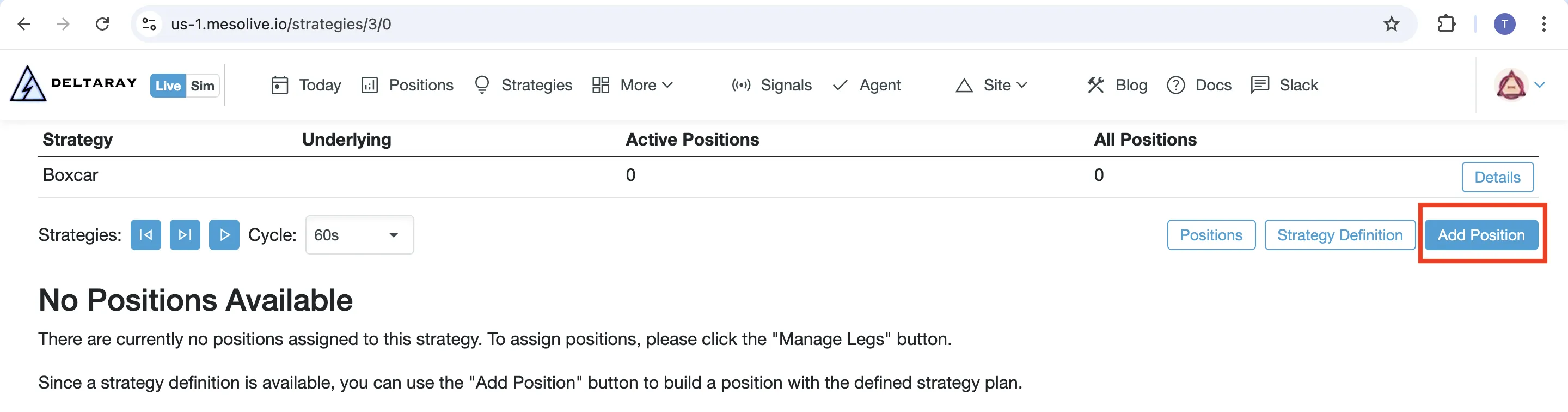
Select an account:
- Use a paper account for your first run: Paper Trading
- Use a live broker account once validated
2) Build the position
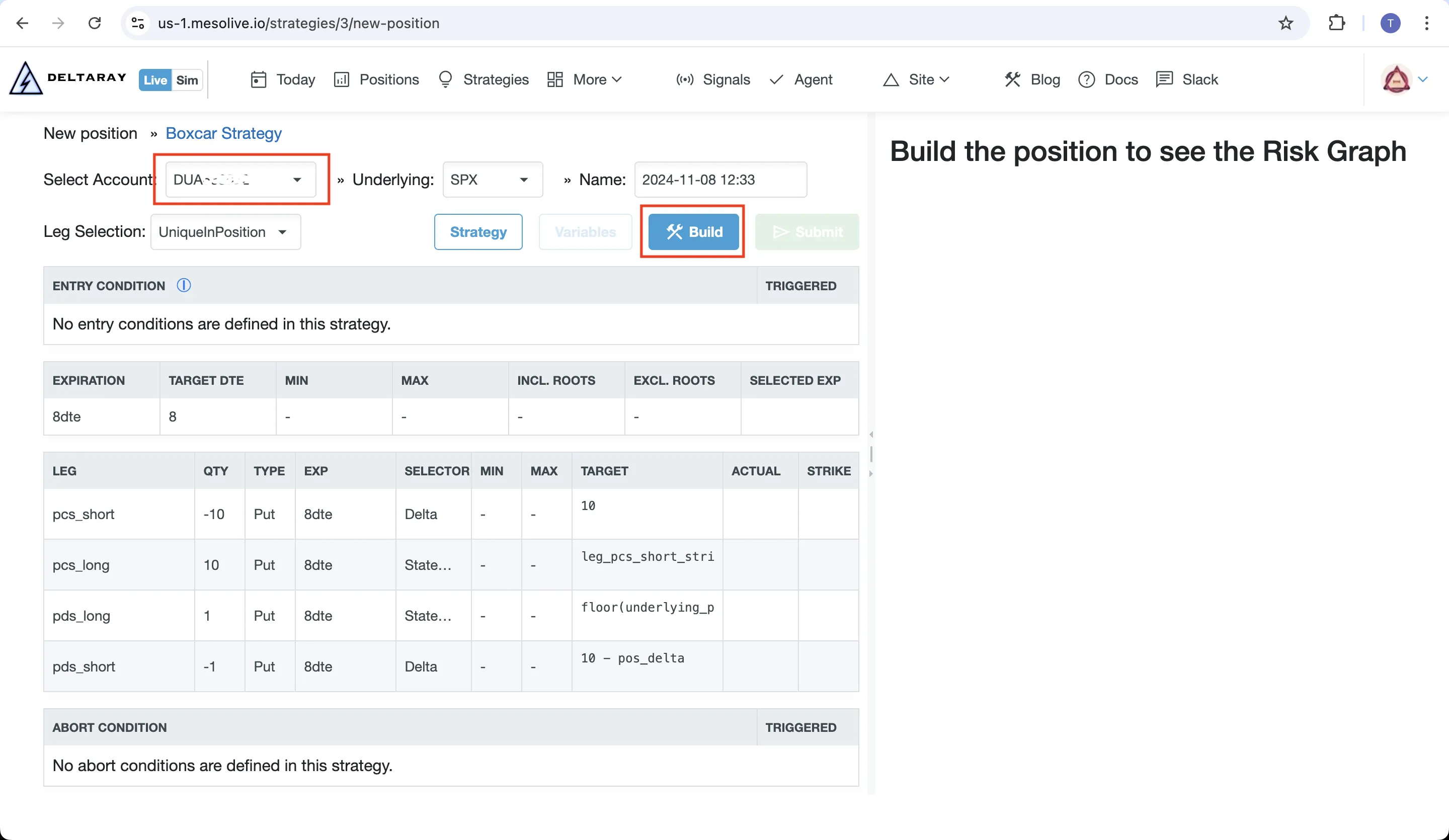
Click Build to:
- Select the legs based on your Strategy Definition
- Evaluate entry conditions / abort conditions
- Display a planned risk graph for the candidate position
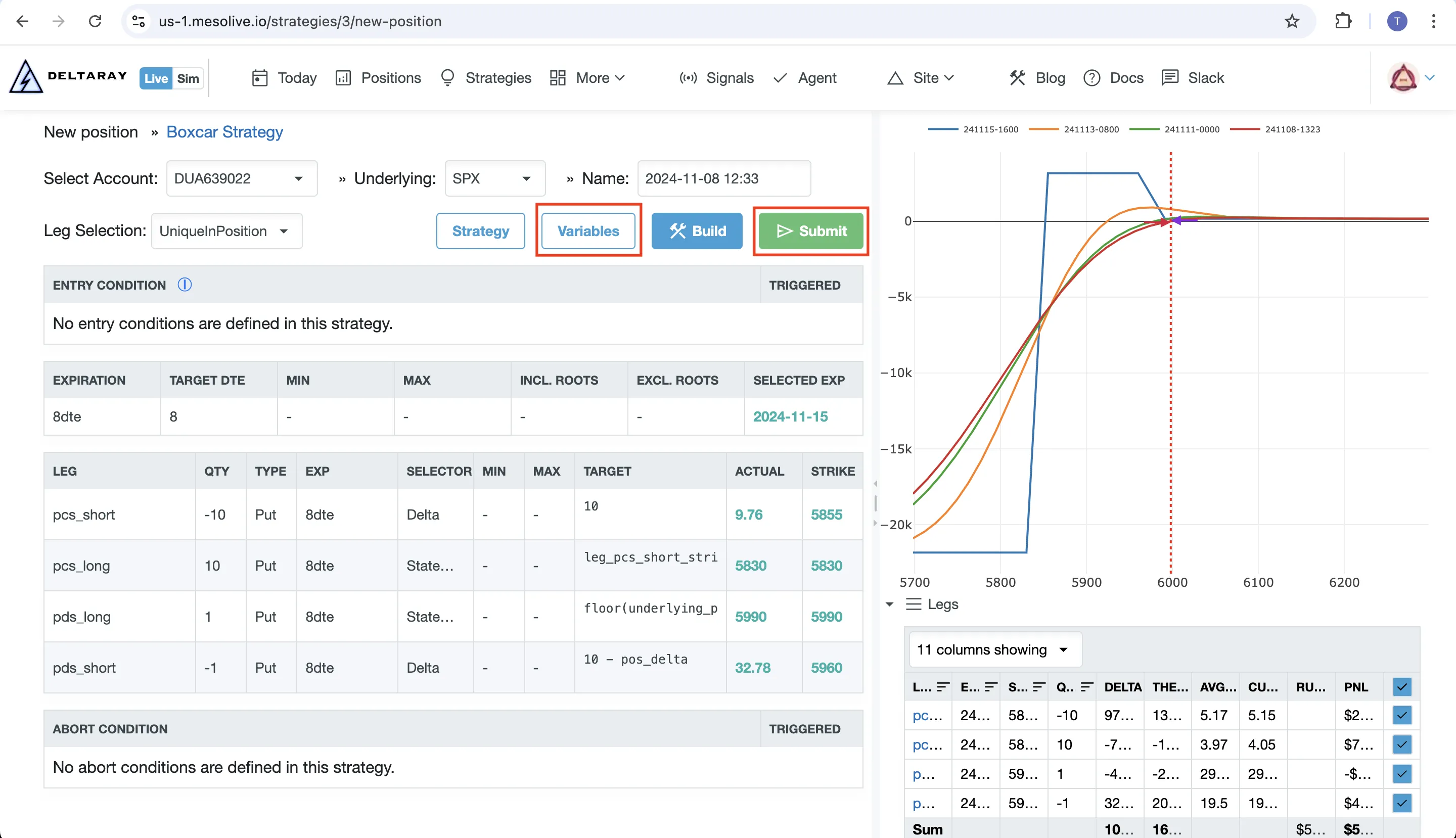
You are responsible for deciding on the entry. If entry conditions are not met or abort conditions are triggered, it may still be possible to proceed, but it is a deviation from the trade plan.
3) Validate risk graph + variables
Before submitting, sanity-check:
- Risk graph shape
- Legs table: contracts and quantities match your intent
- Variables table: all required variables are present
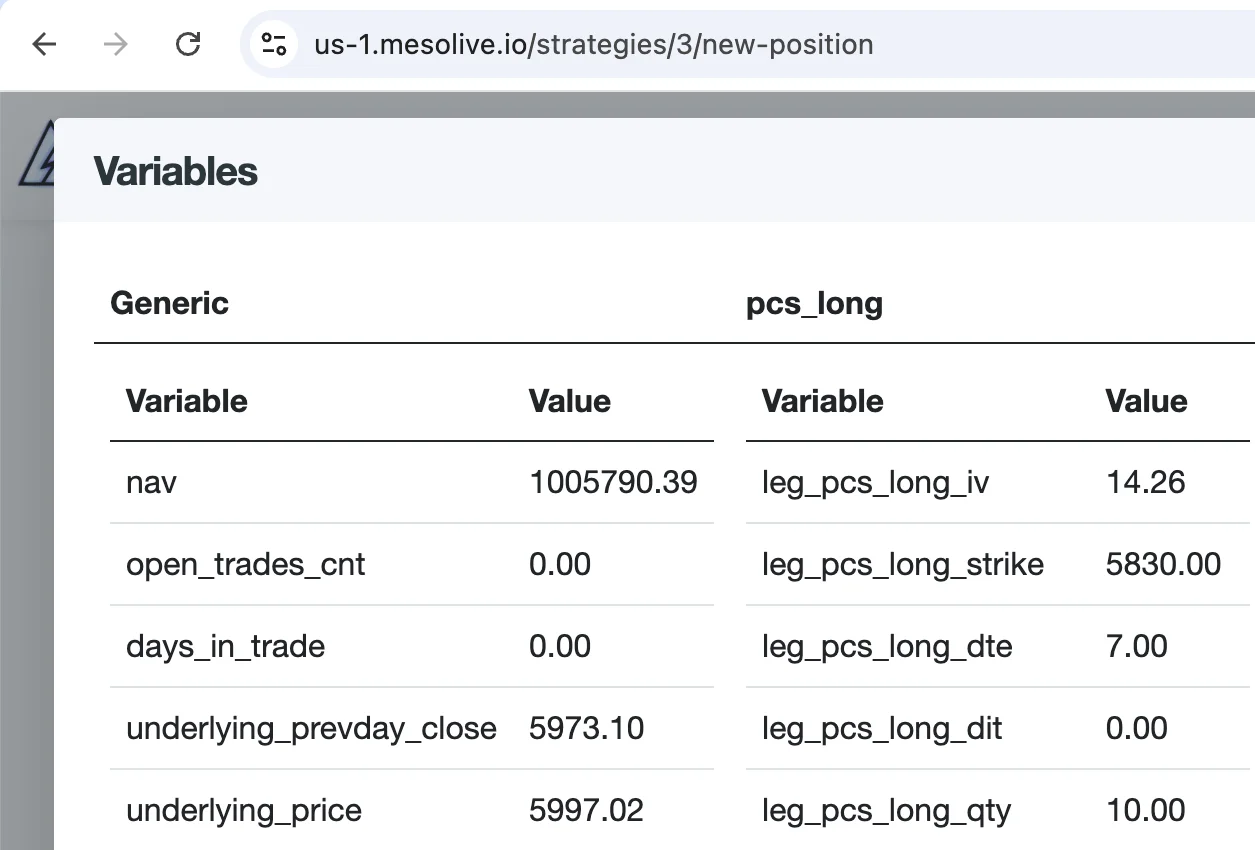
Missing variables can cause erroneous behavior. Always validate that your strategy variables are correctly populated before execution.
4) Define order groups
Click Submit to prepare orders. During submission, you must define order groups so the orders become executable by your broker.
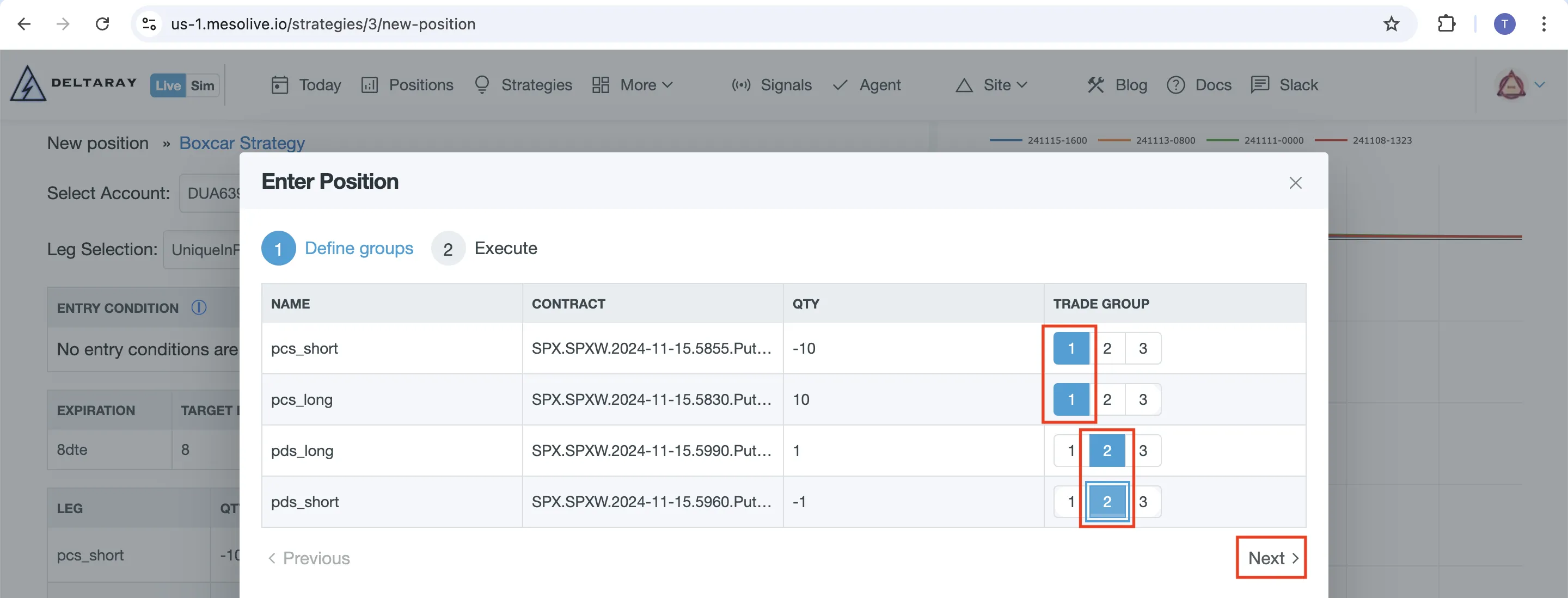
Brokers impose limitations on which leg combinations can be placed as a single combo order. If a broker rejects a group, split it into smaller groups and retry.
Example: IBKR “No trading permission for this product”
When submitting certain multi-leg combo orders through IBKR, it’s possible to encounter the error: No trading permission for this product.
This can happen if IBKR doesn’t support the specific combo structure being submitted.
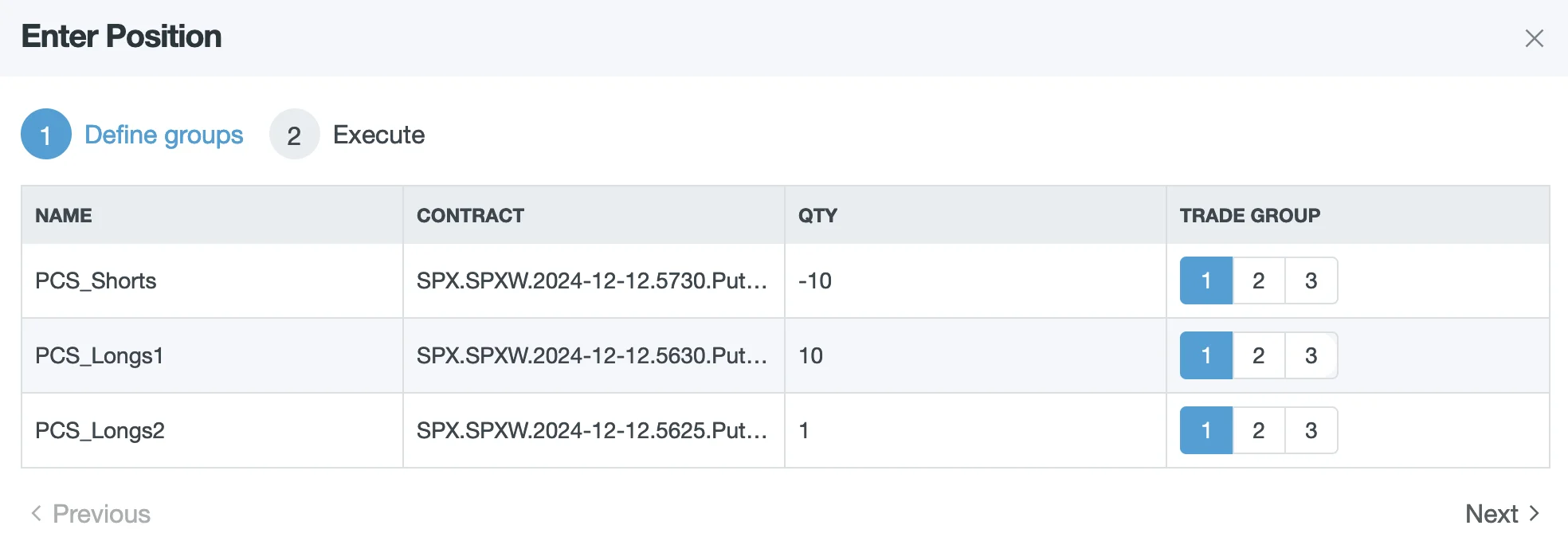

For instance, a 10x10x1 combo order may not be recognized by IBKR, causing the order to be rejected.
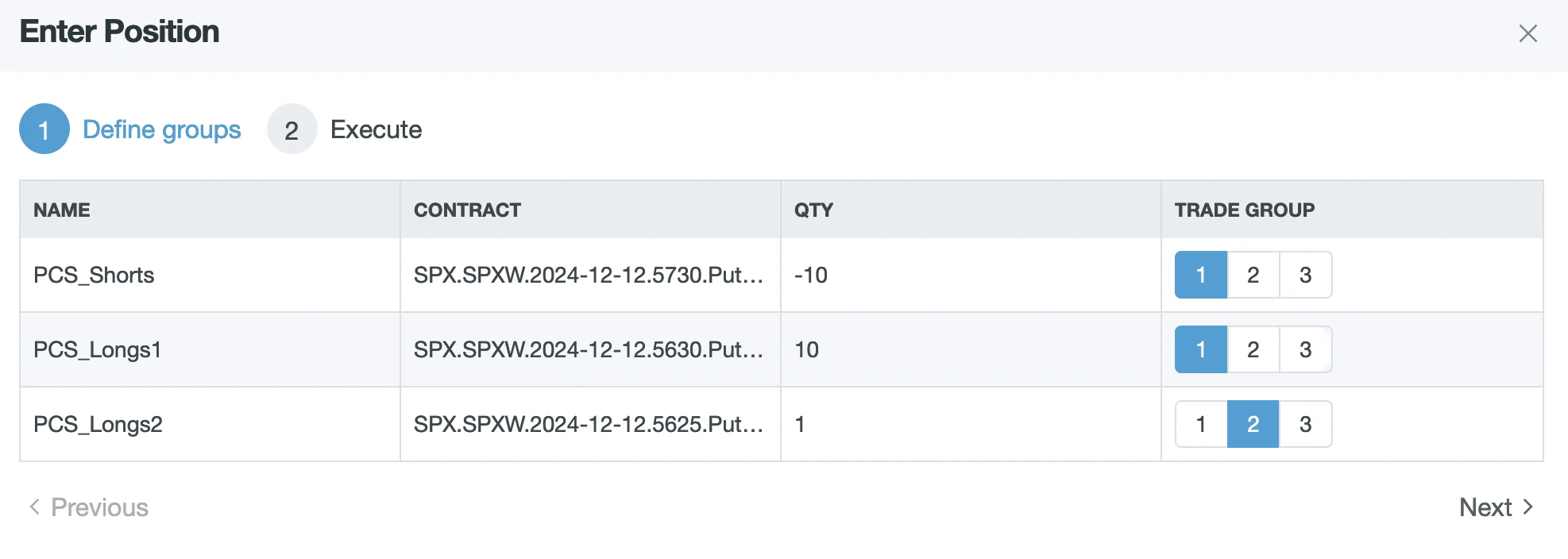
Solution: split the combo into separate supported orders (e.g. 10x10 + 1x):
5) Execute
The last step depends on account type:
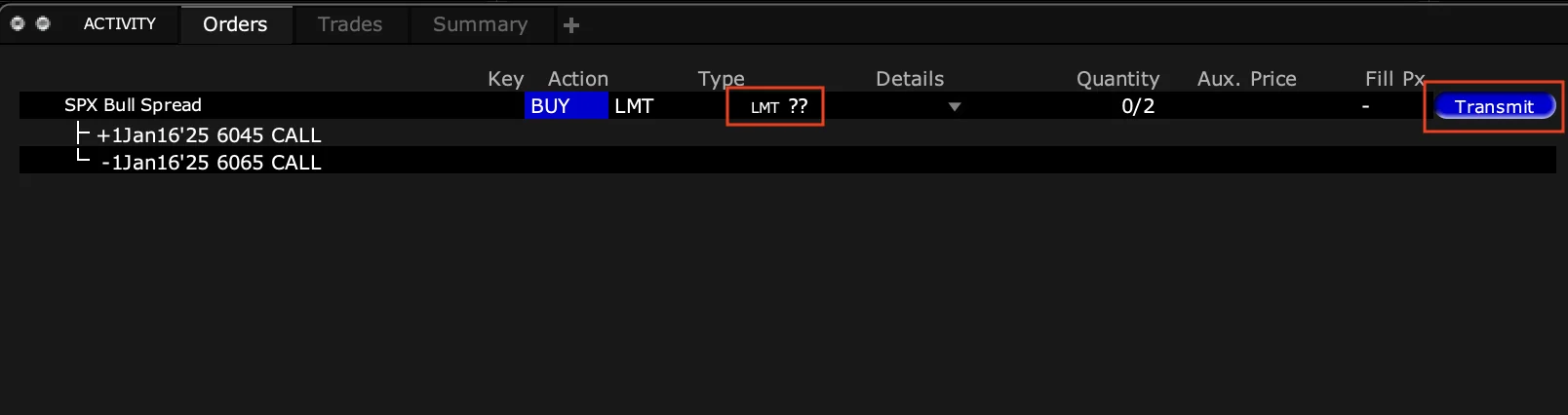
- IBKR (TWS): send orders to TWS, then review and Transmit in TWS.
- TastyTrade: send orders via the Agent’s integration.
- Paper: enter fills in the Paper Trade step.
For further details please refere to the Order Execution page
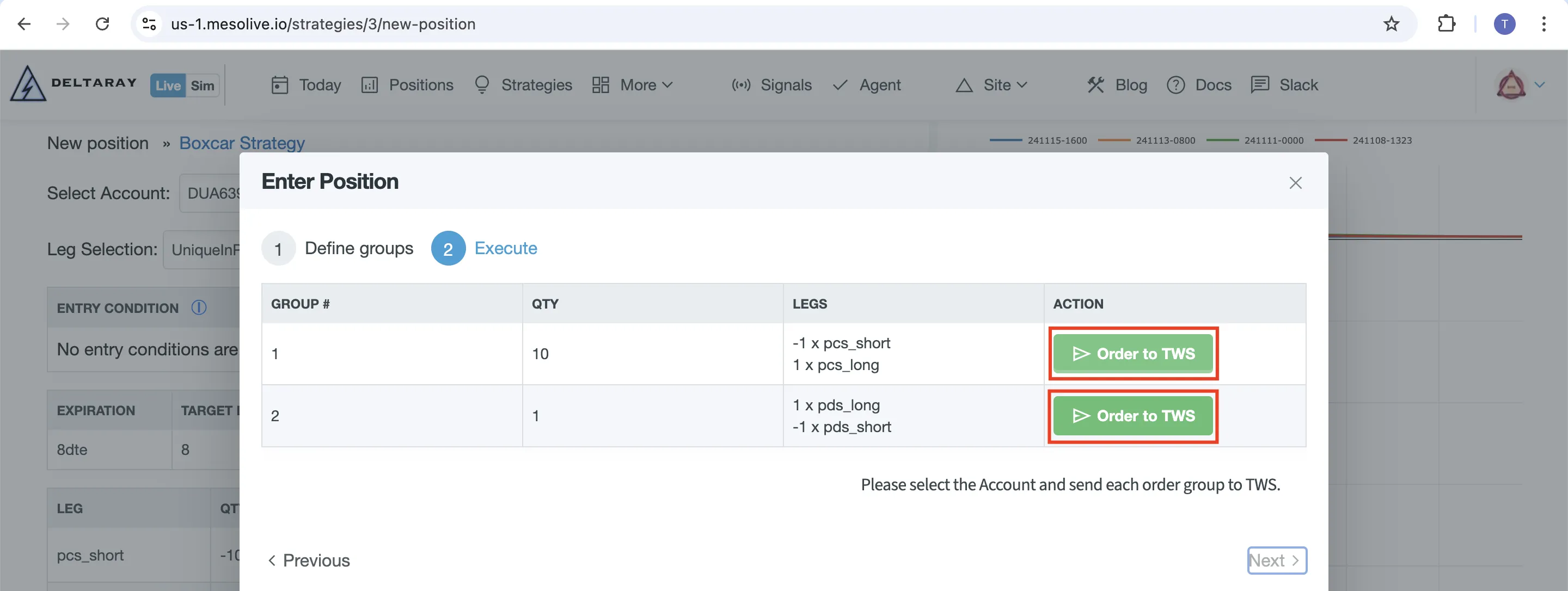
Orders sent to TWS are not automatically submitted: you must review and click Transmit in TWS for the order to enter the market.
Adjust a position
In MesoLive, adjustments are signaled based on the conditions defined in your MesoSim strategy, and surfaced in the Signals dialog on the position page.
To execute and adjustment:
- Open the position and click Signals
- For a triggered condition, run the matching adjustment flow:
- Move Leg
- Add Legs
- Remove Legs
- Execute the adjustment using the Order Execution steps
Troubleshooting
- Build fails / Eval failed: start with Troubleshooting → Agent, then inspect inputs in Data Explorer
- Signals don’t match MesoSim: see Troubleshooting → Signals and the Compatibility matrix