Orders
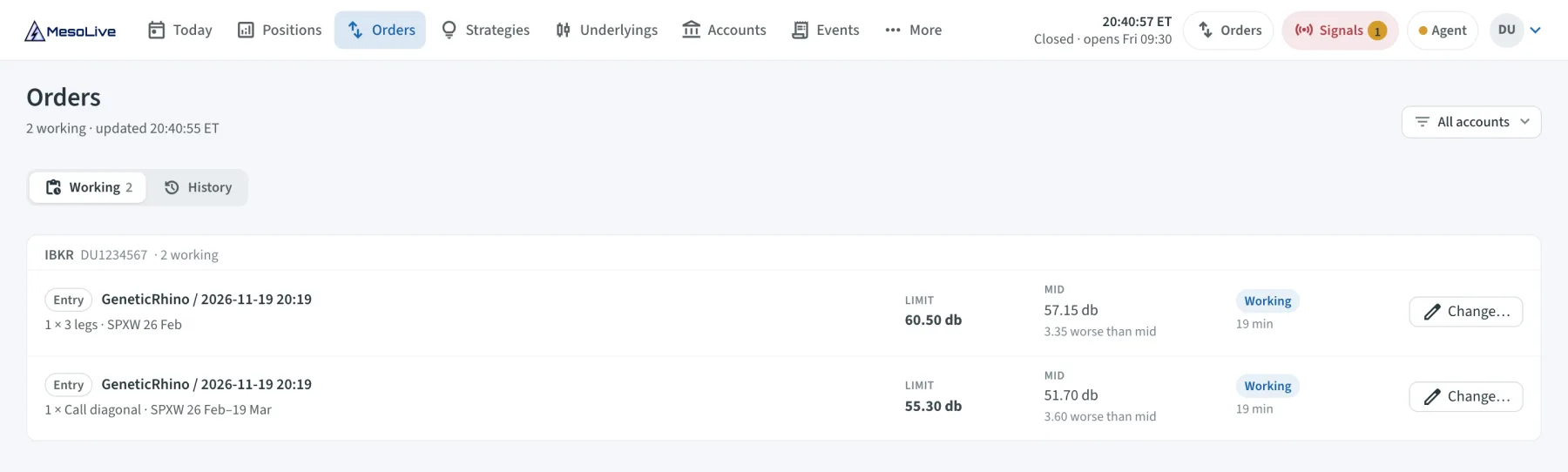
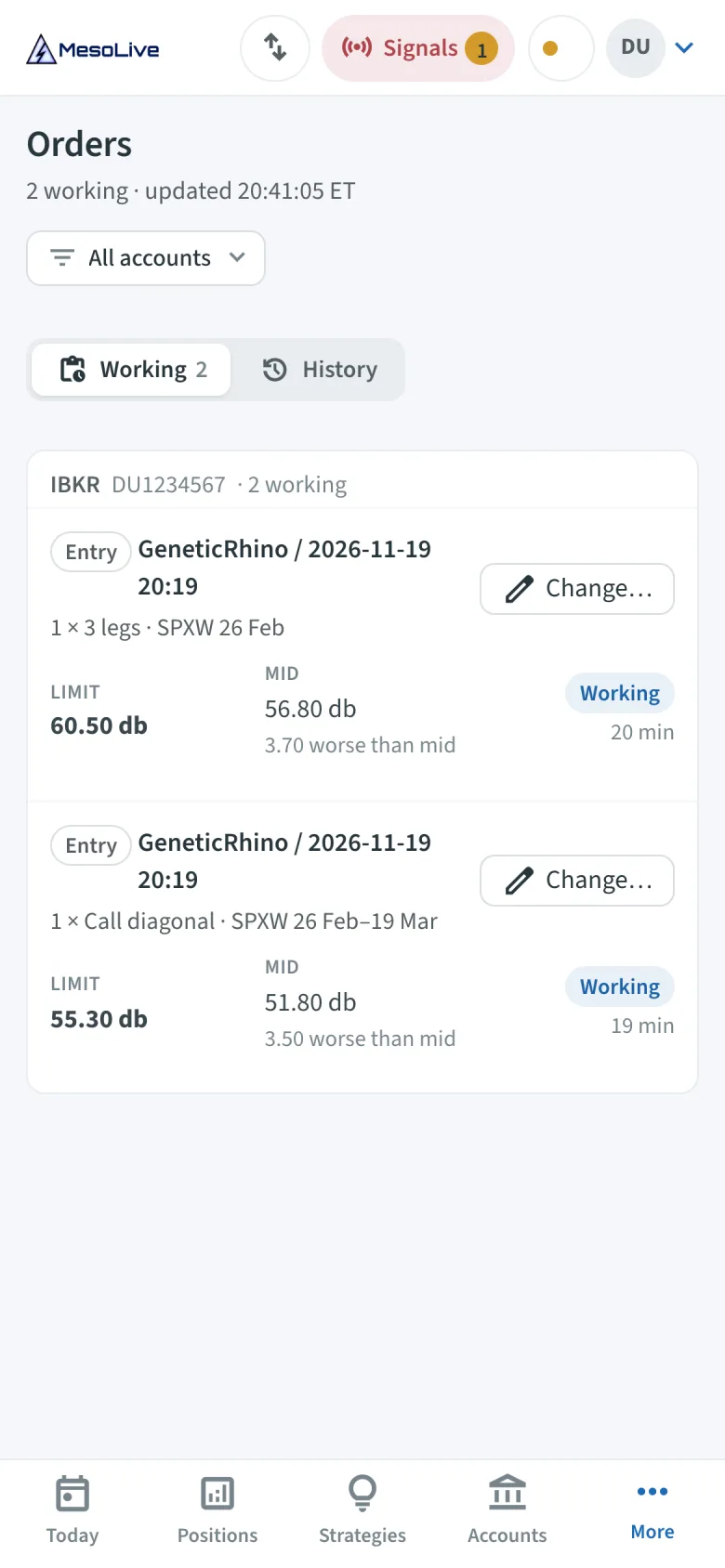
The Orders page (in the app bar) shows the orders MesoLive's pages sent to your brokerages, while they work and after. From here you change a working order's limit or time in force, or cancel it, without leaving MesoLive.
What is listed
The page lists the orders sent from MesoLive's pages to Interactive Brokers, TastyTrade and Tradier. It does not list orders you placed at the brokerage itself, orders sent through the API, or paper orders (paper orders fill at once).
The head shows how many orders work and how many need you, and when the page was updated. Filter by Accounts.
Working
Each working order shows:
- what it does: Entry, Exit, Add legs, Remove legs or Move leg, with its position and structure,
- its Limit next to the Mid, and how much better or worse than the mid it is,
- its state: Working, Partly filled, Sending, Changing, Cancelling or Staged,
- its age.
An order that needs you says why:
| Reason | What to do |
|---|---|
| Not filling for … | The DAY order hasn't filled for a while. Change its limit, or cancel it. |
| a of b filled | Part of the order filled. Decide whether to wait, change the limit or cancel the rest. |
| Half done: another group of its plan filled | Another order group of the same trade filled, this one didn't. Finish it so the position is complete. |
| Staged in TWS: transmit or delete it there | An earlier MesoLive version staged the order in TWS without transmitting it. Transmit or delete it in TWS. |
The Orders pill in the app bar appears while orders work, with the number of orders that need you. Today's Needs attention list shows them too.
Change an order
Click Change… on a working order to open its ticket.
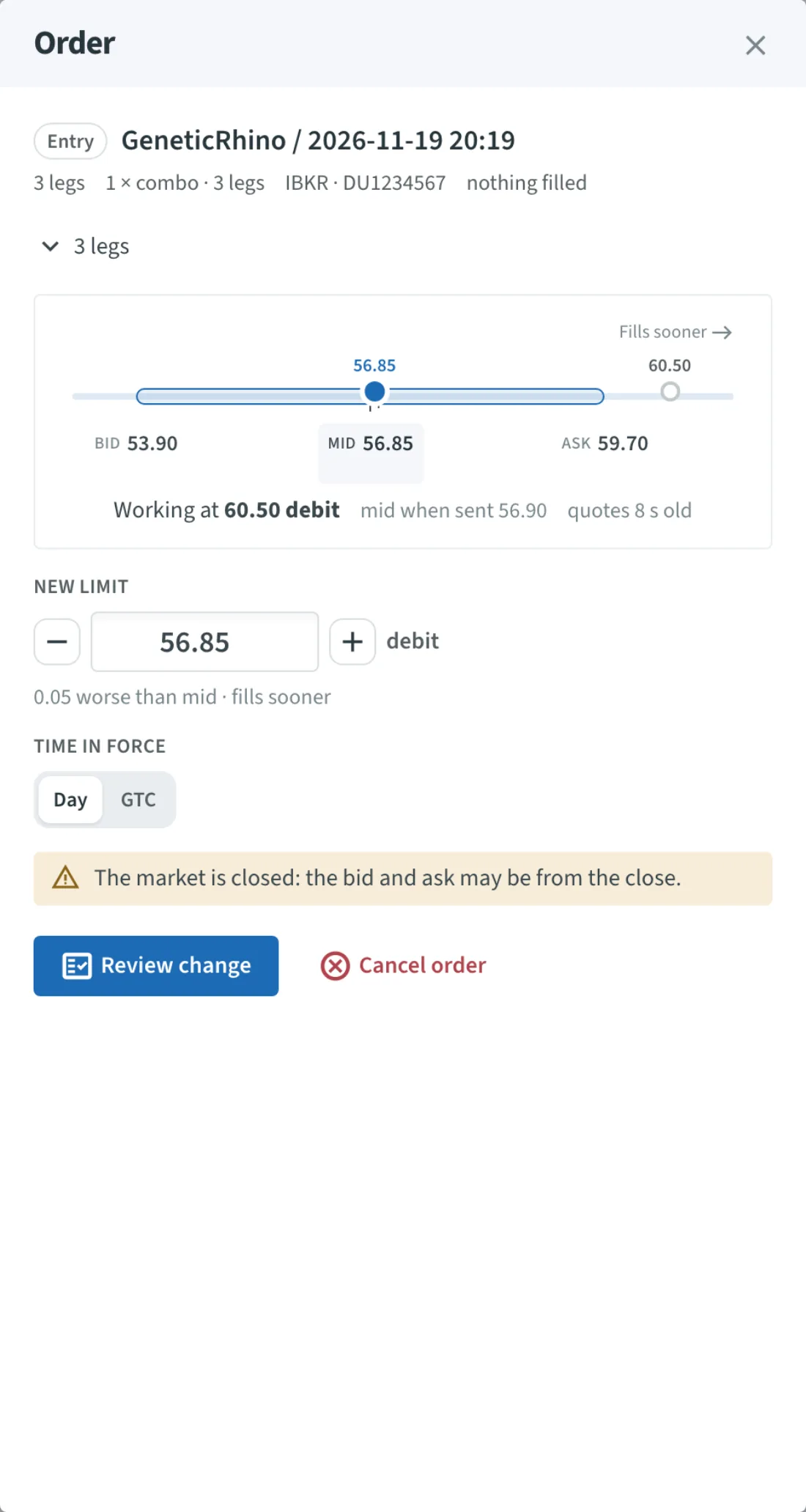
- Pick Bid, Mid or Ask on the price ladder, or set the New limit with the − / + stepper (one price step at a time).
- Choose the Time in force: Day or GTC.
- Click Review change, check the change, then click Change order at … (or Back).
Only the limit and the time in force change. To change the quantity or the order type, cancel the order and send a new one from the position.
The ticket checks the change before you send it:
- A buy's limit goes no higher than the ask, and a sell's no lower than the bid.
- The quotes must be up to date.
- It warns you when the market is closed, or when the new limit is unlikely to fill until the market moves.
How each brokerage applies the change:
| Brokerage | Change |
|---|---|
| Interactive Brokers | TWS changes the order in place: what filled stays filled, and nothing is sent again. |
| TastyTrade | TastyTrade edits the order; the order gets a new ID. |
| Tradier | Tradier changes the order in place. A change can't turn a debit into a credit or back. |
Some orders can only be cancelled here, not changed:
- an order staged in TWS: transmit or change it in TWS;
- an order the API sent (automation or the SDK): change it there;
- an order whose legs MesoLive doesn't hold: change or cancel it at the brokerage;
- any order while your agent is older than 3.0: Update the MesoLive Agent to change orders here. Cancel works as it is.
Cancel an order
Click Cancel order on the ticket and confirm. What has filled stays filled.
History
History lists the orders that ended, by day: Filled, a of b filled, Refused or Cancelled, and how often an order was changed. Choose the period: Today, 1W, 1M, 3M, YTD, or a range. Load older shows more.
From a position
A position's Orders tab lists the orders of its trades: exec plan, group, legs, limit, sent time, state, filled quantity and fill price. Change… opens the same ticket.
Related
- Order execution: leg groups, pricing and sending
- Create and Adjust Positions